
Table of Contents
If you need help creating an email template, view the guide here.
On the Insight installed version #
- Go to Setup → Templates → Email Templates.
- Add a new template or edit an existing template.
- Click the Add Image button:

- Click Browse:
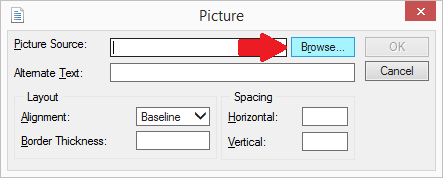
- Select the image you’d like to add and click Open → OK.
- **It is very important that the image you have added to your email is in a permanent location and will not be moved or deleted. If it is, it will need to be re-added to your email template.
- You can resize your image using the square at the corners.
- It is recommended to send yourself a test email to see how it will look when sent to clients.
On the Insight cloud version #
- Follow the steps here to copy your image into Insight cloud.
- Go to Setup → Templates → Email Templates.
- Add a new template or edit an existing template.
- Click the Add Image button:
- Click Browse:
- Select the image you copied over in step 1 and click Open → OK.
- You can resize your image using the square at the corners.
- It is recommended to send yourself a test email to see how it will look when sent to clients.